


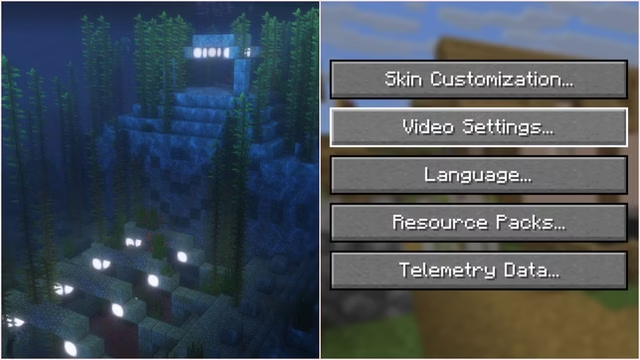
Minecraft Java Edition is getting a major UI overhaul, and the video settings page is leading the charge. Mojang rolled out these changes in snapshots 25w41a as part of the Mounts of Mayhem update, and honestly? It’s about time. The old cluttered settings are finally getting organized into logical categories that actually make sense. Let’s break down exactly what’s new, what’s gone, and how this improves your gaming experience.
Minecraft Big Redesign: Organized Categories
Remember the old video settings where every option was jumbled together in one overwhelming list? Those days are dead. Mojang implemented a brand-new divided design with three distinct sections: Display, Quality & Performance, and Interface. This isn’t just rearranging furniture—it’s a complete usability upgrade.
| Settings Category | What’s Inside | Impact |
|---|---|---|
| Display | Resolution, VSync, Framerate, FPS reduction, GUI scale, brightness | Quick adjustments for output |
| Quality & Performance | Presets, biome blend, render distance, chunk builder, simulation distance, and more | Optimization control |
| Interface | Autosave indicator, vignette, attack indicator | Visual preference tuning |
The Display section handles your monitor and basic output settings—perfect for quick tweaks. Quality & Performance consolidates everything that affects how your game runs and looks, while Interface covers the overlay and visual feedback elements. Finally, players can find what they need without scrolling endlessly!
New Settings You’ve Been Asking For
Three brand-new video settings emerged from the Graphics settings where they were previously buried:
See-Through Leaves – Ever got frustrated navigating dense forests where leaves block your view? Now you can adjust leaf transparency independently.
Improved Transparency – Fine-tune how the game renders translucent blocks, giving you better control over visual quality.
Weather Effect Radius – Customize how far weather effects render around you, perfect for performance optimization on older systems.
These separate settings give players granular control that was previously locked into broad Graphics presets.

The New Graphics Presets System
Graphics presets are now called “Preset” and live under Quality & Performance. You get four clear options: Fast, Fancy, Fabulous!, and Custom. Here’s the beauty—new players automatically get Fancy as default, which strikes the perfect balance between looks and performance. This removes the guesswork for beginners while keeping advanced players’ Custom option for fine-tuning.
Each preset automatically adjusts dozens of settings simultaneously, then you can override specific options. No more hunting individual sliders to match your needs.
Settings That Left the Building
Mojang made a deliberate choice to relocate these settings to Accessibility instead:
- View Bobbing – Head movement while walking
- Glint Speed – Enchantment shimmer animation speed
- Glint Strength – Enchantment shimmer brightness
- FOV Effects – Speed effects on field of view
- Distortion Effects – Visual distortions from certain situations
Why move them? These are primarily accessibility features affecting visual comfort rather than raw performance. Grouping them with dedicated accessibility tools makes more sense than cluttering video settings.
Ready to test these changes yourself? Jump into Minecraft Java Edition snapshot testing to experience the new interface firsthand and provide feedback to Mojang.
Why This Matters for Your Gameplay
Organization might sound boring, but it’s transformative. Whether you’re troubleshooting performance issues, optimizing visual quality, or just tweaking brightness, you’ll now find relevant settings grouped logically. New players won’t feel overwhelmed. Competitive players gain precise control. Performance-conscious builders can optimize exactly what matters to them.
This UI rework represents Mojang listening to community feedback. The old settings page became chaotic as features accumulated over years. This redesign finally untangles that complexity.
What’s Next?
These changes rolled out in snapshot 25w41a and will likely receive tweaks based on community feedback throughout snapshot cycles. If you’re testing snapshots, try the new settings and report issues. Your feedback directly shapes the final version coming to the full release.
Want to prepare for upcoming Minecraft changes? Explore our Minecraft Java Edition guide collection for comprehensive tips on optimizing your experience once these features go live.
Stay updated on Minecraft Java Edition changes! Subscribe to our snapshot coverage to never miss important UI improvements and new features as they roll ou
FAQs
Q: Are these new settings available in the current stable release?
A: Not yet. The new video settings page is currently testing in snapshots (25w41a and beyond). They’ll roll out to the full release with a future major update. If you want to test now, enable snapshots in your launcher settings.
Q: If I move settings to Accessibility, will my custom video settings get reset?
A: No. Relocating settings to Accessibility is purely organizational—your existing configurations won’t be affected. The settings maintain their current values; they’re just grouped differently for better usability and accessibility-focused discovery.

