


The Minecraft Bedrock 1.21.113 update is now live, bringing exciting enhancements to the Copper Age game drop. This patch fixes critical bugs and optimizes performance for smoother gameplay across all platforms. Whether you’re on console, mobile, or PC, here’s your complete download guide.
Minecraft Update Overview
| Platform | Download Method | Estimated Time |
|---|---|---|
| **Xbox One/Series X | S** | Auto-update via system |
| PlayStation 4/5 | Manual check or auto | 5-10 minutes |
| Nintendo Switch/Switch 2 | eShop or in-game prompt | 5-15 minutes |
| Android/iOS | App Store update | 3-8 minutes |
| Windows 10/11 | Minecraft Launcher | 5-10 minutes |
What’s New in 1.21.113?
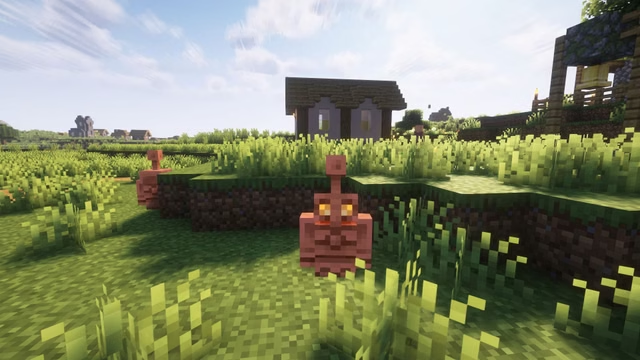
This build enhances the Copper Age content featuring copper golems and improved automation mechanics. Key improvements include bug fixes for stability, performance optimizations across platforms, and refined copper-related crafting recipes.
For detailed patch notes and gameplay changes, visit the official Minecraft website.
Xbox One & Series X|S Download Guide
Step-by-Step Process:
- Navigate to “My Games & Apps” or find Minecraft in Recently Played
- Highlight Minecraft and press the Options button
- Select “Manage Game & Add-Ons”
- Choose “Updates” and confirm the download
The update queues automatically and installs within minutes. Keep your console online and avoid powering off during installation to prevent file corruption.
PlayStation 4 & 5 Installation
Quick Method:
- Go to your console homepage and locate Minecraft
- Press Options on the controller
- Select “Check for Updates”
- Confirm to queue the 1.21.113 download
PlayStation’s system typically auto-updates games when in rest mode, but manual checking ensures immediate access to new features.
Nintendo Switch & Switch 2 Update Process
Two Methods Available:
Method 1 – In-Game Notification:
- Launch Minecraft
- Accept the update notification pop-up at the top
- Redirected to Nintendo eShop automatically
- Hit Update button
Method 2 – Manual Check:
- Highlight Minecraft on dashboard
- Press + or – button on Joy-Con
- Select “Software Update”
- Choose “Via the Internet”
Both methods work seamlessly, but automatic notifications are faster when available.
Mobile Download (Android/iOS)
Simple App Store Method:
Android:
- Open Google Play Store
- Search for Minecraft
- Tap “Update” button
iOS:
- Open Apple App Store
- Find Minecraft in your apps
- Tap “Update”
Pro Tip: Enable auto-updates in your app store settings to receive patches instantly. Most mobile devices handle this automatically, ensuring you never miss important updates.
For mobile-specific tips and tricks, check out our Minecraft Pocket Edition guide on Technosports.
Windows 10/11 PC Installation
Launcher Method (Recommended):
- Download the official Minecraft Launcher if not installed
- Sign in with your Microsoft account
- Select Minecraft: Bedrock Edition from the sidebar
- Click the dropdown menu beside the green Play button
- Ensure “Latest Release” is selected
- Hit Play to trigger automatic download
The launcher checks for updates automatically at startup. The 1.21.113 build downloads before game launch, making it the most convenient PC method.
Installation Time: Typically 5-10 minutes depending on internet speed and system specifications.
Critical Download Tips
For All Platforms:
- Maintain stable internet connection throughout download
- Don’t power off devices mid-installation
- Free up storage space if updates fail (500MB+ recommended)
- Restart the game after update completion
Troubleshooting Common Issues:
- Update not appearing? Restart your device and check again
- Download stuck? Clear cache and retry
- Installation failed? Ensure sufficient storage space
For comprehensive troubleshooting and optimization guides, visit Technosports gaming section where we cover Minecraft technical support.
Why Update Matters
Beyond copper golem enhancements, version 1.21.113 addresses gameplay-affecting bugs and improves cross-platform performance. Staying current ensures:
- Access to latest features and content
- Compatibility with multiplayer servers
- Protection against known exploits
- Smoother gameplay experience
Post-Update Actions
After successful installation:
- Load your world to verify everything works
- Test new copper-related features
- Back up worlds before extensive building
- Report any new bugs via official channels
The Copper Age update transforms automation possibilities, making this patch essential for technical Minecraft players interested in redstone and mechanical contraptions.
*For official updates and community news, visit Minecraft.net. Explore more gaming guides and tips.
Frequently Asked Questions
Q: Will updating to 1.21.113 affect my existing worlds or delete my builds?
A: No, updating to version 1.21.113 is completely safe for existing worlds. Mojang designs updates to be backward-compatible, meaning all your builds, items, and progress remain intact. However, it’s always good practice to back up your worlds before major updates. On PC, copy your saves folder; on consoles and mobile, use cloud save features. The update only adds new content and fixes bugs without removing or altering existing structures.
Q: Can I play multiplayer with friends who haven’t updated to 1.21.113 yet?
A: Unfortunately, no. Minecraft Bedrock Edition requires all players to be on the same version for multiplayer compatibility. If you’ve updated to 1.21.113 but your friends are on older versions, you won’t be able to join their worlds or have them join yours until they update. Most realm servers and featured servers also update quickly, so encourage your friends to download the latest version to ensure seamless cross-platform play and access to new features together.

