

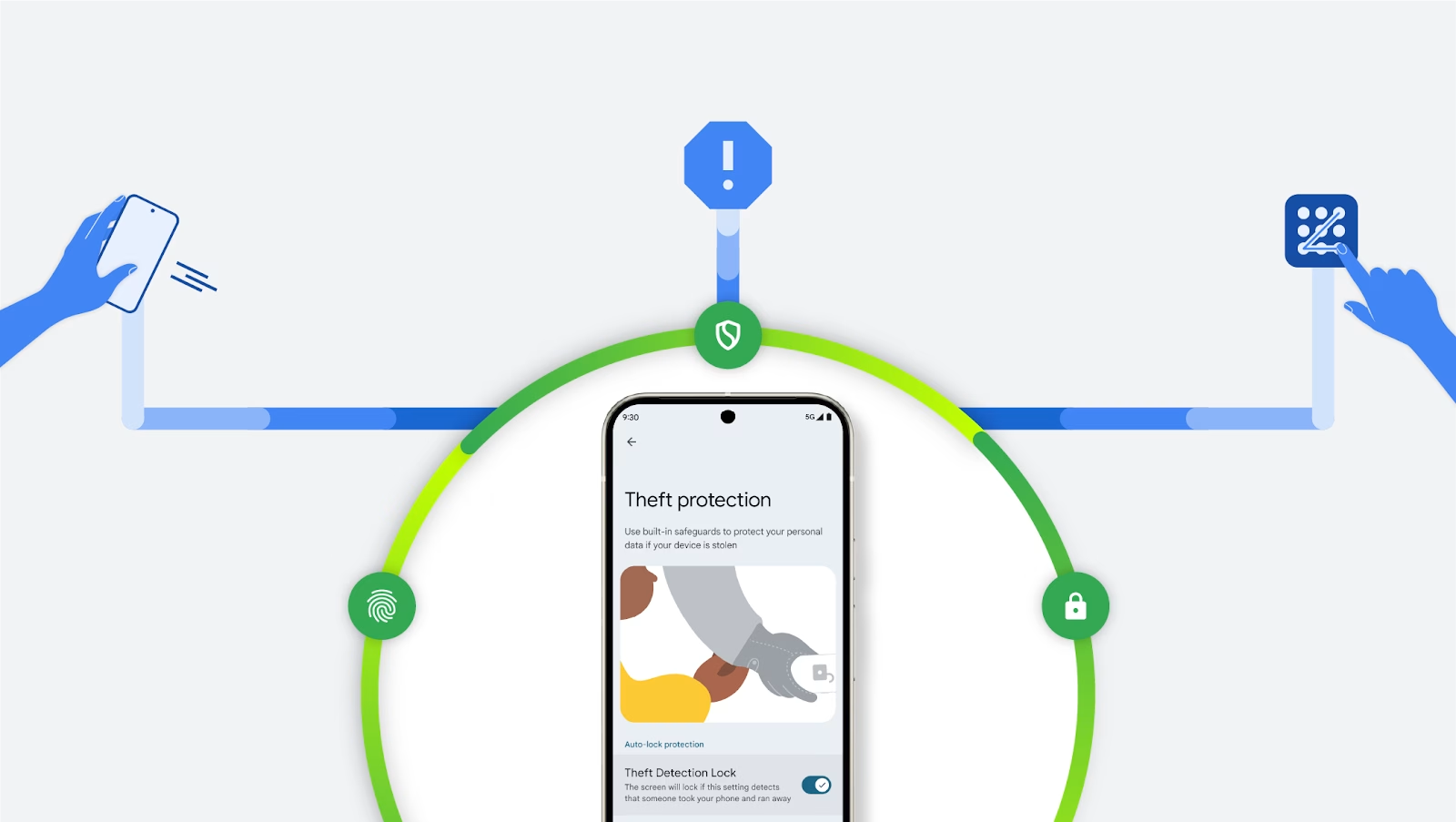

Protecting your Android phone from theft requires a multi-layered security approach. These essential settings create robust defense mechanisms that make your device less attractive to thieves while ensuring you can recover or remotely wipe your data if stolen.
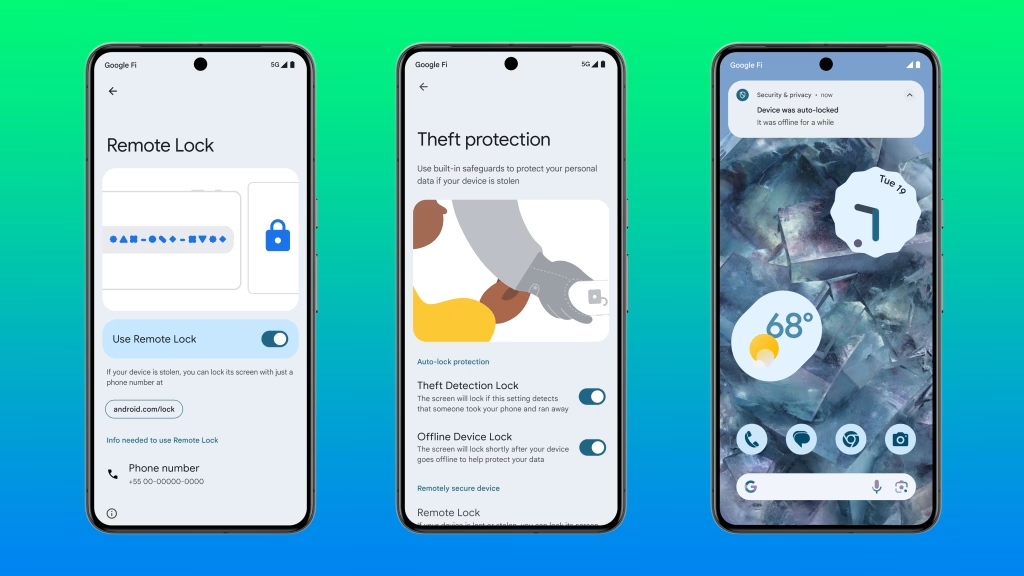
Essential Android Security Settings
| Security Feature | Location | Purpose | Recommended Setting |
|---|---|---|---|
| Screen Lock | Settings > Security > Screen lock | Primary protection | PIN/Password + Biometrics |
| Find My Device | Settings > Security > Find My Device | Remote tracking/wipe | Always ON |
| Auto-Lock Timer | Settings > Display > Screen timeout | Quick protection | 15-30 seconds |
| 2FA for Google | myaccount.google.com/security | Account protection | Enable 2-Step Verification |
| Smart Lock | Settings > Security > Smart Lock | Contextual unlocking | Disable in risky areas |
| Device Encryption | Settings > Security > Encryption | Data protection | Enabled (default) |
| Auto Data Wipe | Settings > Lock screen > Secure lock | Failed attempt protection | 5-10 attempts |
| Lock Screen Message | Settings > Lock screen > Contact info | Recovery assistance | Alternate contact |
| Google Backup | Settings > Google > Backup | Data recovery | Regular automatic |
Primary Security Measures
Screen Lock Protection forms your first line of defense. Navigate to Settings > Security > Screen lock and configure a strong PIN or password. Adding fingerprint or face unlock provides convenience without compromising security, allowing quick access while maintaining protection.
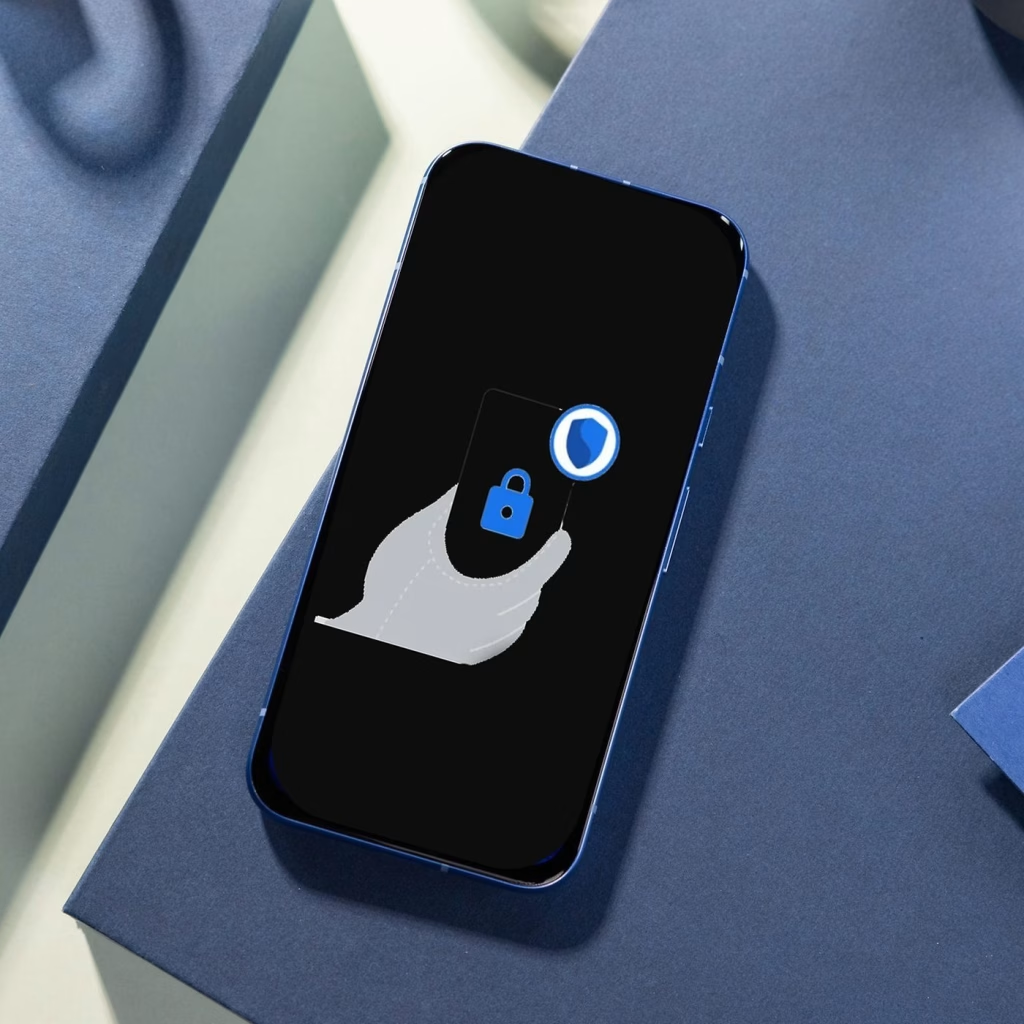
Find My Device is crucial for theft recovery. Enable this feature in Settings > Security > Find My Device and ensure it’s linked to your Google Account. Visit android.com/find to locate, lock, or remotely erase your phone if stolen.
Auto-Lock Configuration prevents unauthorized access when you’re distracted. Set screen timeout to 15-30 seconds in Settings > Display > Screen timeout, then configure immediate locking after timeout in Settings > Security.
Advanced Protection Features
Two-Factor Authentication protects your Google Account even if your phone is compromised. Visit myaccount.google.com/security and enable 2-Step Verification under “Signing in to Google” to secure your digital identity.
Smart Lock Management requires careful consideration. While convenient, disable Smart Lock in potentially risky locations like home or office where theft could occur. Access this in Settings > Security > Smart Lock.
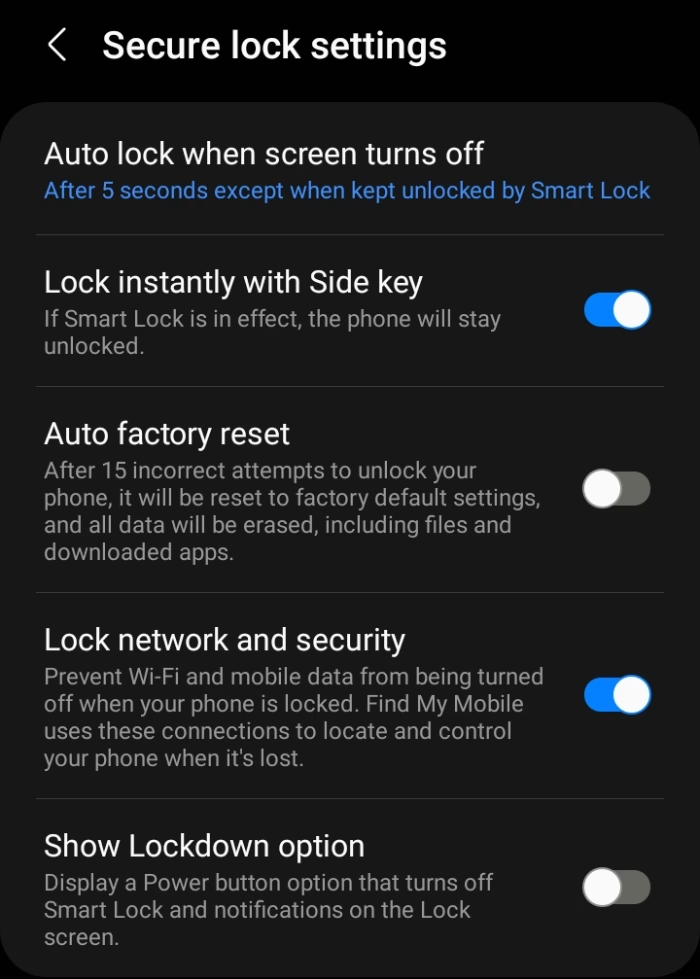
Automatic Data Wipe provides nuclear option protection. Samsung and Pixel devices offer auto-wipe after multiple failed unlock attempts. Find this under Settings > Lock screen > Secure lock settings > Auto factory reset.
Additional Security Enhancements
Device Encryption protects your data at rest. Modern Android phones encrypt by default, but verify this in Settings > Security > Encryption & Credentials.
Lock Screen Messages can aid recovery by displaying alternate contact information. Add this in Settings > Lock screen > Contact info with a message like “If found, please call [alternate number].”
Third-Party Security Apps like Cerberus, Prey Anti Theft, or McAfee Mobile Security offer advanced anti-theft features beyond Google’s built-in protection.
Regular Backups minimize data loss if your device is wiped. Configure automatic backups in Settings > Google > Backup to protect photos, contacts, and app data.
FAQs
What’s the most effective Android anti-theft setting?
Enable Find My Device combined with strong screen lock and two-factor authentication for comprehensive protection.
How quickly should I set my Android phone to auto-lock?
Set screen timeout to 15-30 seconds for optimal balance between security and convenience.

